How to preview a tattoo in 3D before the first line
From a blank project to a shareable 3D preview in about five minutes: preparing your artwork, choosing a body, placing the design and checking it from every angle.
The InkVista3D team
2 min read
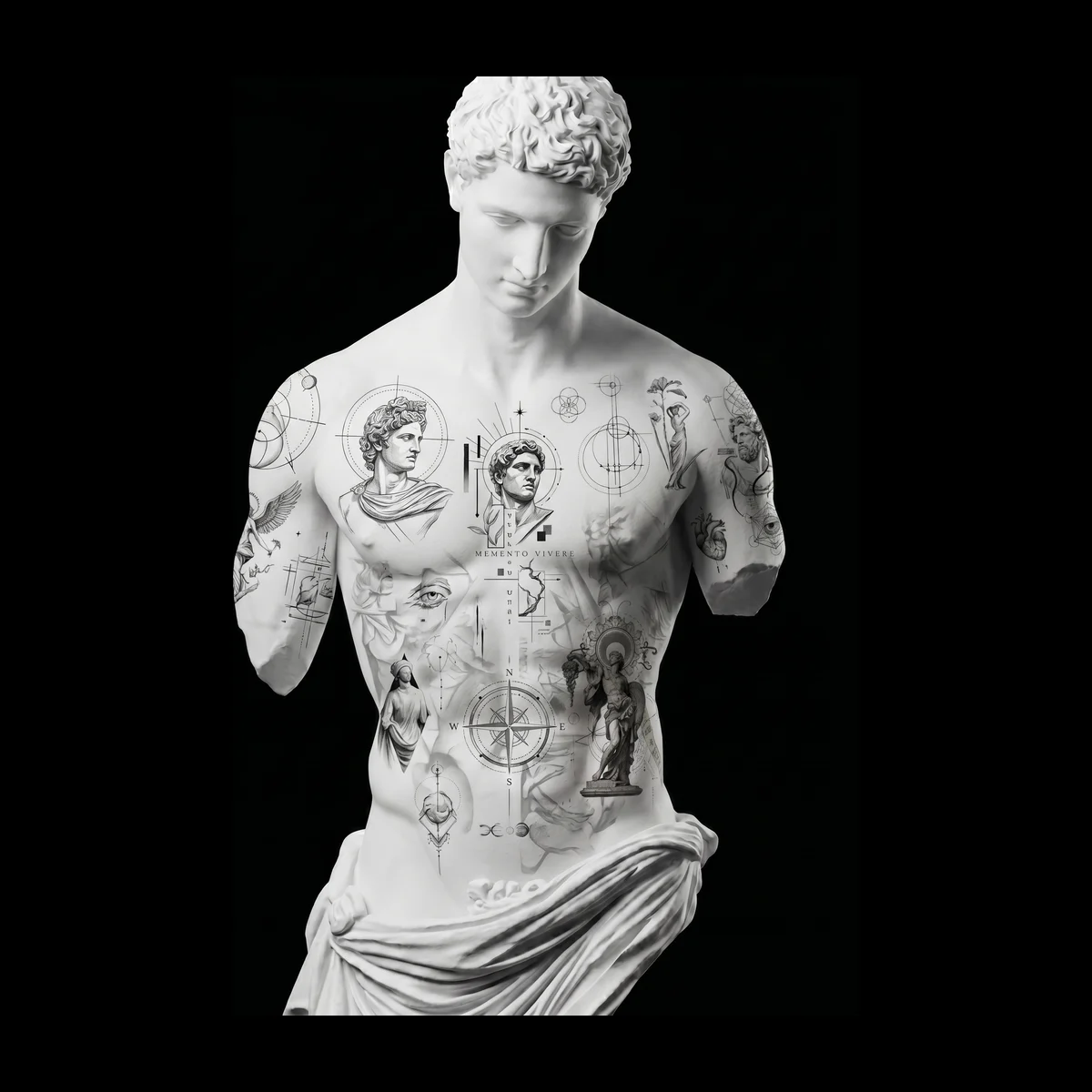
A 3D preview answers the questions a flat mockup can't: how a design follows the curve of a shoulder, what it looks like from the side, and whether it's the right size for the spot. Here's the whole workflow, start to finish.
1. Prepare your artwork
You can upload PNG, JPG or WebP files up to 10MB. For the cleanest result, export a PNG with a transparent background: only your linework and shading land on the skin, with no paper-white box around it.
- Crop tight to the design so sizing starts from the artwork, not the empty canvas.
- Keep a decent resolution. Around 2000 px on the long side holds detail when your client zooms in.
- For black-and-grey work, keep the greys in the file. The preview shows shading the way you drew it.
2. Create a project
Click New project, enter your client's name and the body areas you're working on, then open the project. Each project keeps its designs, placement and share link together, so one client never sees another's work.
3. Choose the body
In the Model tab, pick the body that's closest to your client: a full posed figure for large pieces and flow across the body, or a close-up part when the detail matters most. Then set the skin tone so contrast and shading look true to life.
4. Place the design
In the Design tab, add your artwork and click the body where it should go. The design wraps the surface in real time. Scale and rotate it until it sits right, and keep an eye on the size readout: it shows the approximate real size in centimetres or inches.
5. Check every angle
Turn the body all the way round before you share. Look at the piece from where other people will see it, not just straight on: from the side, from above, with the arm down. That's usually where a placement shows it's slightly too high or too wide.
6. Share it
Open the Share tab, create a link and choose an access code. Send both to your client. They open the link on any phone, turn the preview and approve it. For how to make that conversation go well, read running a consult that ends in a yes.
2 min read
Try it on your next client
Put your design on a 3D body in about five minutes.
Free to start, no credit card. One full client project with sharing and approval.